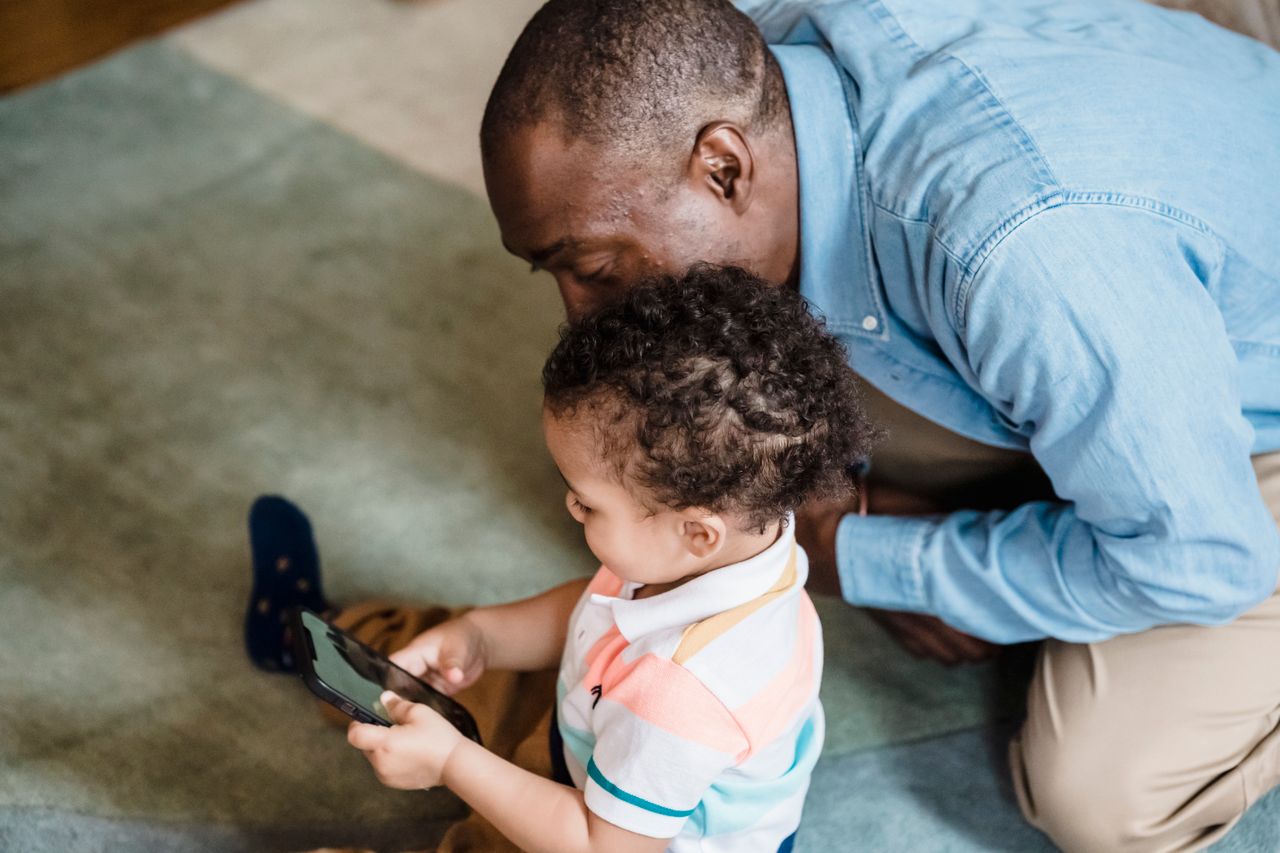
iPhone parental controls are built into every iPhone, they cost nothing, and most parents can set them up in about ten minutes. This guide walks you through it in plain English, step by step.
Last updated 18 October 2026. Apple has renamed some Screen Time settings in its latest software, so I’ve included both names.
If your child is about to get their first iPhone, or already has one and you’ve never looked at the settings, you’re not behind. Most parents haven’t. The good news is that Apple’s own tools are better than most people expect, and you don’t need to pay for another app to cover the basics.
Do iPhone parental controls actually work?
Yes, for the basics. iPhone parental controls can limit screen time, block or approve apps, filter websites, restrict who your child can message, and stop purchases without your say-so. They work best when you set them up through Family Sharing, because then you can manage everything from your own phone.
They can’t do everything. A determined child can find workarounds, and the controls won’t tell you what’s being said inside most apps. I’ll cover that in a moment. Think of them as a good safety net, not a replacement for talking to your child.
What you need before you set up iPhone parental controls
- Your own Apple Account, with you set up as the Family Sharing organiser or a parent or guardian.
- A Child Account for your child. Children under 13 need one, and it has to be part of your Family Sharing group. It shouldn’t be shared with anyone else.
- Up-to-date software on your phone and theirs, so the settings match what I describe below.
- Your child’s phone in your hand for a few minutes, in case anything needs approving.
How to set up iPhone parental controls with Family Sharing
On your iPhone:
- Set up Family Sharing. Open Settings, tap your name, then Family, and follow the prompts to start a family group.
- Add your child. Choose Add Member, then Create Child Account, and follow the steps. If they already have an Apple Account, invite them instead.
- Open their settings. Go to Settings, then Family, then tap your child’s name. On older software you’ll find this under Screen Time instead.
- Set a Screen Time passcode that your child can’t guess. Don’t use their birthday or the number you use for your phone.
- Work through the settings below, starting with the ones I’d turn on first.
Everything you change here is applied on your child’s iPhone, even when they’re not with you.
Which iPhone parental controls should you turn on first?
You don’t have to switch everything on. These are the ones I’d start with:
| Setting | What it does | Why it matters |
|---|---|---|
| Screen Time Schedule (older versions: Downtime) | Locks most apps during set hours, such as bedtime | Protects sleep and homework time |
| Time Allowances (older versions: App Limits) | Sets a daily limit for app categories like games or social media | Stops “just five more minutes” turning into two hours |
| Allowed Contacts (older versions: Communication Limits) | Decides who your child can call, message and FaceTime | Cuts down contact from strangers |
| Communication Safety | Warns about, or blocks, photos and videos showing nudity, gore or violence in Messages and FaceTime | Adds a safety net for upsetting content |
| Ask to Buy | Sends purchase requests to your phone for approval | Stops surprise App Store bills |
| Content & Privacy Restrictions | Sets age ratings for apps, films, music and books, and controls privacy settings | Keeps age-inappropriate content out |
How do iPhone parental controls handle messages and strangers?
This is where most parents’ worries sit, so it’s worth getting right.
Under Allowed Contacts, you can choose who your child can communicate with during Screen Time. The tightest option is Contacts Only, which means they can only talk to people you’ve added to their contacts. You can also turn on Manage Contacts to approve each new contact yourself.
Communication Safety is a separate setting. When it’s on, the iPhone checks photos and videos in Messages and FaceTime and warns your child, or blocks them, if it detects nudity, gore or violence. It’s a useful extra layer, though it’s no substitute for your child knowing they can come to you.
For most 8 to 11-year-olds, I’d start with Contacts Only. It’s much easier to loosen a setting later than to tighten one once it’s become normal.
Can iPhone parental controls stop in-app spending?
Yes. Ask to Buy sends a request to your phone whenever your child tries to buy or download something. You can approve it or decline it. For children under 13, Ask to Buy is on by default. For under-18s it’s also on by default, although where you live can affect whether it can be turned off.
You can also stop children installing apps altogether, or block individual apps. Blocked apps aren’t deleted. They just appear dimmed on the Home Screen.
What iPhone parental controls can’t do
- They don’t show you your child’s conversations. You can limit who they talk to, not read what’s said in other apps.
- They don’t control every game or app. Games like Roblox and Fortnite have their own settings. See our Roblox parental controls guide and free Fortnite safety check.
- They can be bypassed. A child who knows or guesses the passcode can change settings. A friend’s phone or a school computer sits outside your controls altogether.
- They’re not a substitute for conversation. The kids who stay safest tend to be the ones who tell a parent when something feels wrong.
What changes as your child gets older?
Apple applies some restrictions automatically based on your child’s age. Limit Adult Websites is on by default for children under 18, and Ask to Buy and Ask to Browse are on by default for under-13s. You can adjust most of these as your child grows.
A sensible approach is to start tight and loosen gradually. At 11 or 12, you might add a few contacts and extend screen time on weekends. By 14 or 15, the conversation about trust matters more than any setting. If you’re still deciding when a phone makes sense, read what age should a child get a phone.
The conversation I’d have with my child
Setting up iPhone parental controls goes better when your child knows why you’re doing it. Try something like:
“These settings aren’t because I don’t trust you. They’re because the internet isn’t built for kids. As you show me you can handle it, we’ll loosen them together.”
Tell them what you can and can’t see. Agree what happens if they come across something upsetting: they tell you, and they’re not in trouble for it. That single agreement does more than any passcode.
Quick checklist: iPhone parental controls
- Family Sharing is set up and your child has a Child Account.
- You’ve set a Screen Time passcode they don’t know.
- A Screen Time Schedule covers bedtime and homework hours.
- Time Allowances limit games and social media.
- Allowed Contacts is set to Contacts Only to begin with.
- Communication Safety is on.
- Ask to Buy is on.
- Content & Privacy Restrictions match their age.
- You’ve talked it through together.
Ready for the next step?
If you’d like everything in one place, the First Phone Guide covers choosing a phone, setting rules and agreeing a family plan, with checklists you can print. Want to compare Apple’s tools with other free options? See our guide to the best free parental control apps.
Frequently asked questions
Are iPhone parental controls free?
Yes. They’re built into every iPhone and use Family Sharing and Screen Time. You don’t need to pay for anything.
Can my child turn off iPhone parental controls?
Not without your Screen Time passcode. Choose one they can’t guess, and don’t share it. If your child’s account is managed through Family Sharing, changes are controlled from your device.
What’s the difference between Screen Time and Family Sharing?
Family Sharing links your Apple Accounts together. Screen Time is the set of controls you manage through it. You need Family Sharing to manage your child’s iPhone from your own phone.
Can I set up iPhone parental controls without Family Sharing?
Yes, directly on your child’s phone using Screen Time, but you’ll need to be on that device to change anything. Family Sharing is easier and works from your own phone.
Do iPhone parental controls work on iPad?
Yes. The same Family Sharing and Screen Time settings apply to an iPad signed in with your child’s Child Account.
Will iPhone parental controls block YouTube or TikTok?
You can block an app completely or set time limits on it, but the controls don’t filter what appears inside an app. For that, you’ll need to use the app’s own settings.